Before you can work with an item in Developer Studio, all its contents must be available unencrypted on the server. To decrypt a file before pulling it to your local, complete these steps:
-
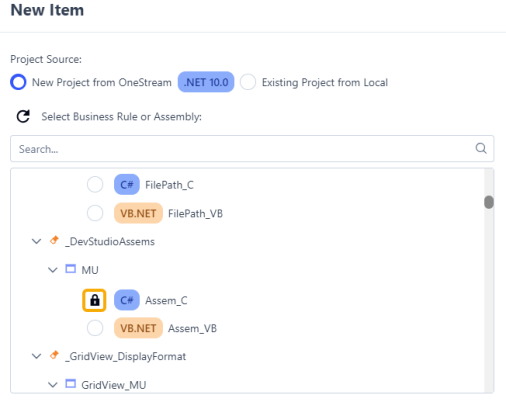
In the New Item or Edit Item window, select the Decrypt icon for an encrypted item.
-
The window that displays depends on whether you are decrypting a business rule or a workspace assembly file.
-
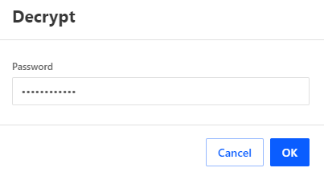
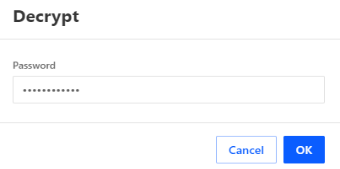
If you are decrypting a business rule, the Decrypt dialog box displays. Enter a valid password and select the OK button.
-
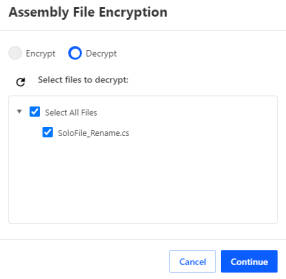
If you are decrypting an assembly file, the Assembly File Encryption dialog box displays. Use the navigation tree to select files to decrypt and select the Continue button.
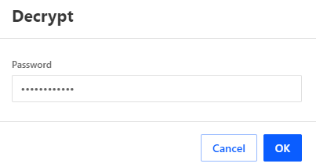
In the Decrypt dialog box, enter a valid password and select the OK button.
-
To encrypt or decrypt an item in the Repository Grid, complete these steps:
-
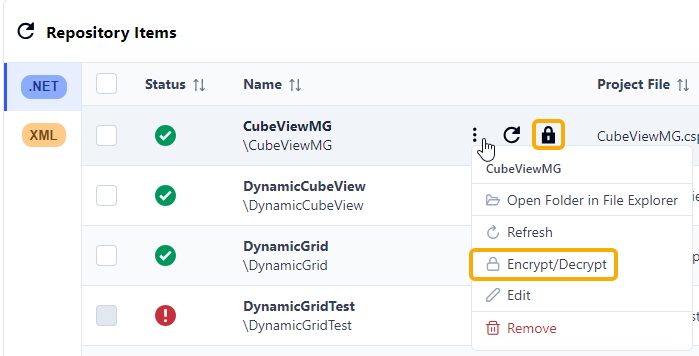
Select the Encrypt/Decrypt option for that item.
-
The window that displays depends on whether you are encrypting/decrypting a business rule or assembly file.
-
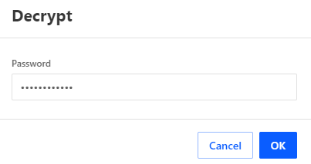
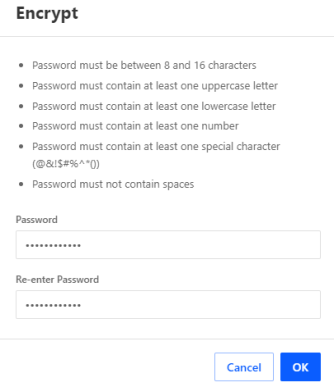
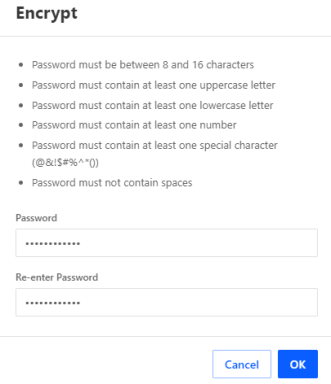
If you are encrypting or decrypting a business rule, the Decrypt or Encrypt dialog box displays. Enter or create a valid password and select the OK button.
-
If you are encrypting or decrypting an assembly file, the Assembly File Encryption dialog box displays. Select either Encrypt or Decrypt and then use the navigation tree to select files. Select the Continue button.
NOTE: Once a single file in an assembly is encrypted, you cannot synchronize any file in the assembly with Developer Studio.
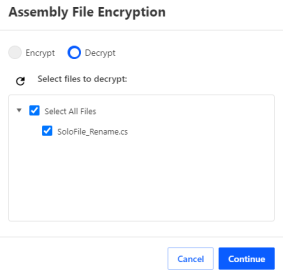
Enter or create a valid password and select the OK button.
-

